
 By Neil
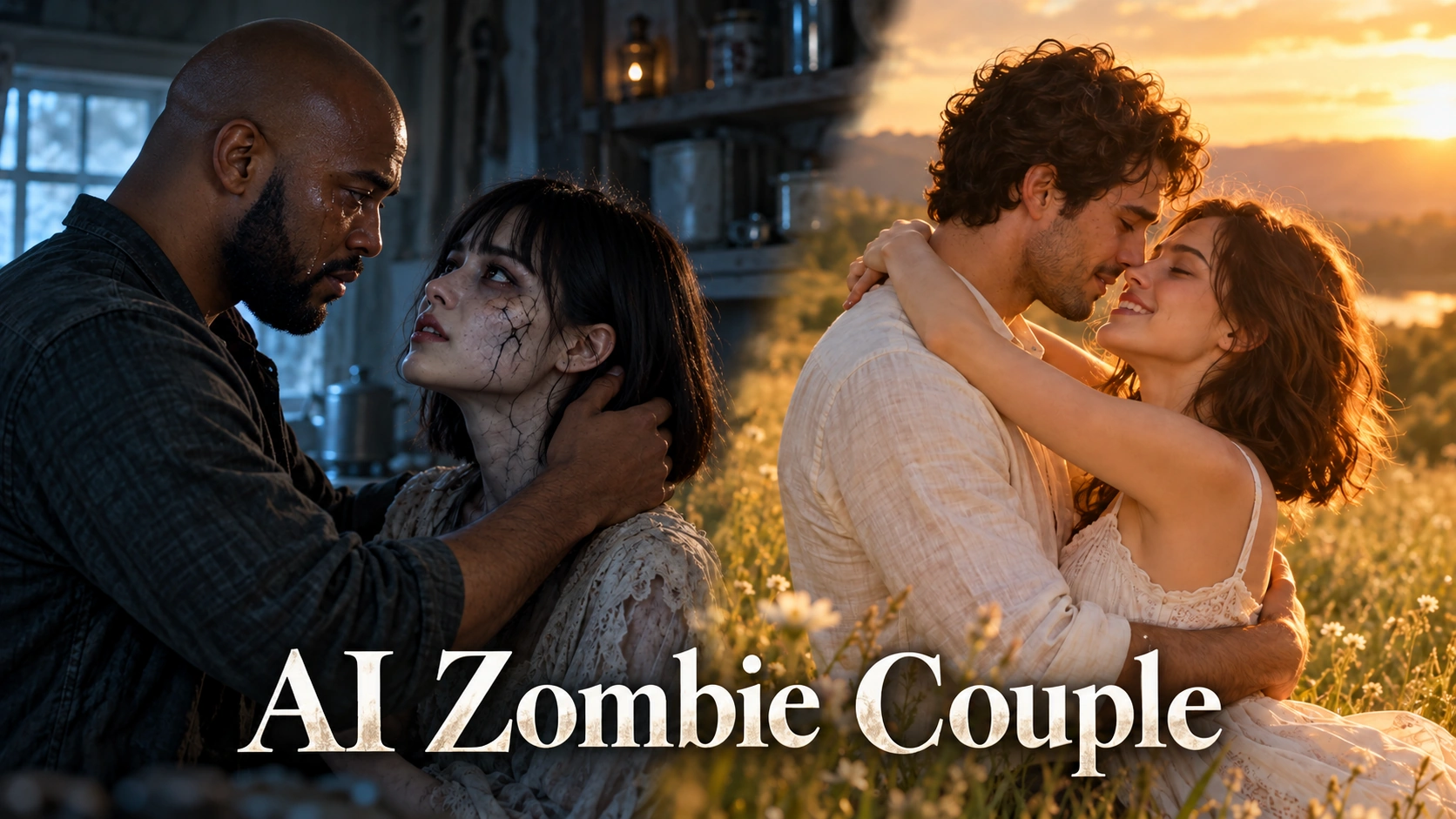
What if you and your partner were the stars of a zombie love story? A tense confrontation. A familiar face behind the zombie makeup. Then a warm memory of the two of you together.
With Picsman’s AI Zombie Couple Video Generator, you can put yourselves into that story using just two photos. The appeal is in the details: faithful cinematic scenes, recognizable faces, and a ready-made template that is simple to use.
Below, see three photo-to-video examples, compare actual video frames with the template’s original scenes, and learn how to make your own. No filming, prompt writing, or manual video editing required.
Quick answer: Upload one photo per person, open the Zombie Couple template, and click Generate in the editor. Picsman handles the scene creation and assembles the finished story for you.
1. What Is an AI Zombie Couple Video?
An AI zombie couple video turns two portraits into a short, dramatic love story. One person remains human; the other appears as a zombie. The survivor faces an impossible choice, opens their arms, and the story shifts from a dark interior to a sunlit memory.
The moment that makes it personal is recognizing your partner in both versions: the unsettling zombie close-up and the gentle smile at the end. You are giving familiar faces a role in a cinematic story.
2. Same Cinematic Scenes, Your Faces
A convincing result needs two things to work together: the scene should feel faithful to the template, and the characters should look like the people in your photos.
Compare the original template stills in the top row with the three generated examples below. Look at the close-up framing, window light, background, and shift from cool shadows to warm sunlight. Those details carry the same visual story, while the cast changes from one example to the next.
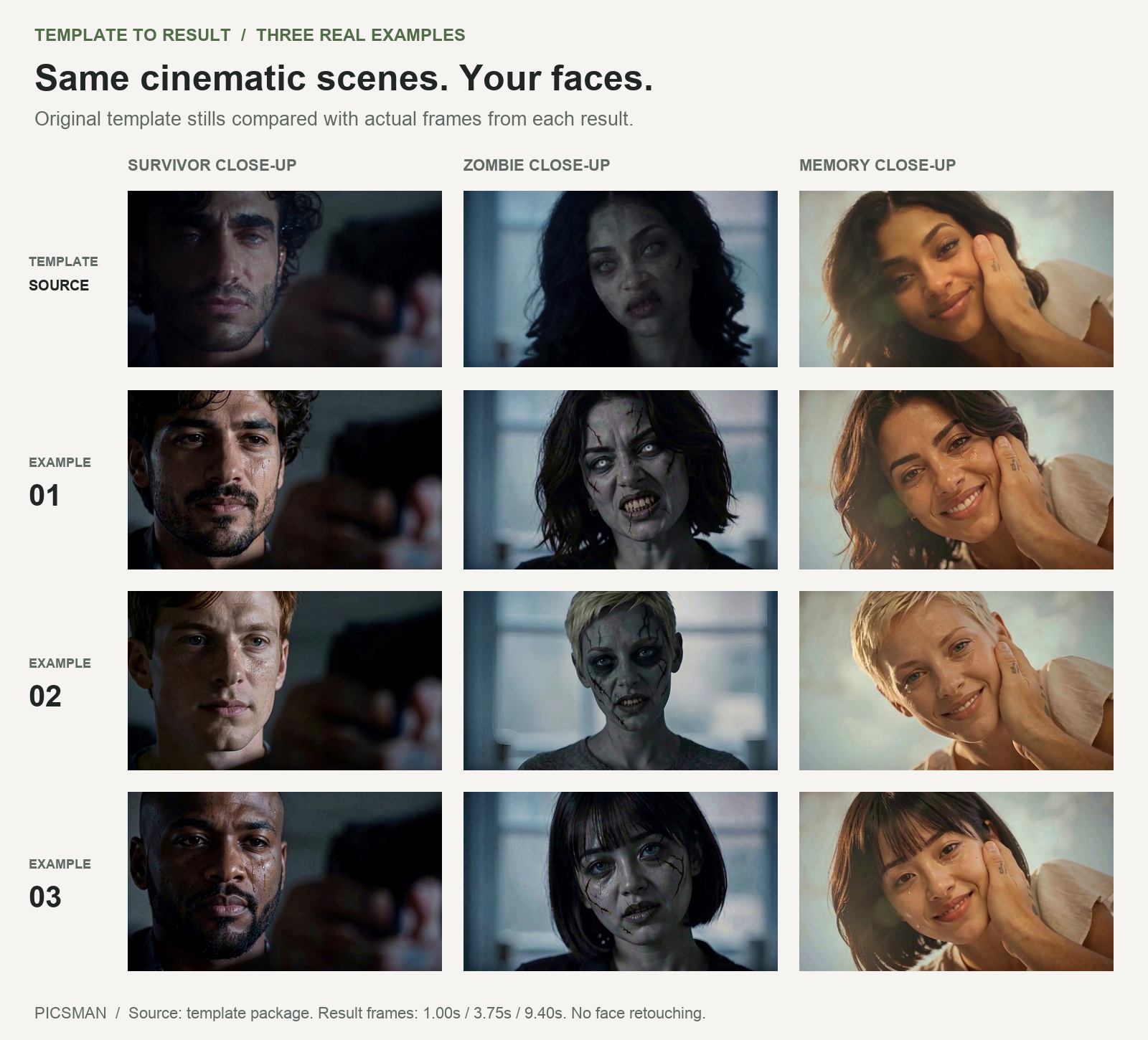
- Faithful scene recreation: the dark room, dramatic close-ups, and warm ending retain the template’s cinematic look.
- Precise character replacement: compare each person’s facial features and hairstyle with their uploaded portrait in the examples below.
- A complete story: the confrontation, embrace, and memory are brought together in one finished clip.
The goal is simple: to feel as though you stepped into the scene. Your portrait supplies the character’s identity; the template supplies the setting, wardrobe, and action.
3. Three Real Photo-to-Video Comparisons
Each comparison pairs the two uploaded portraits with frames taken directly from its generated video. The result frames have not been retouched. Look across each row to compare the original photo, the character close-up, and another moment in the story.
Example 1: Everyday portraits become movie characters
The first pair starts with two relaxed café portraits. In the result, the man appears in the tense opening and the open-arm scene. The woman appears first with zombie makeup, then in the final warm close-up.
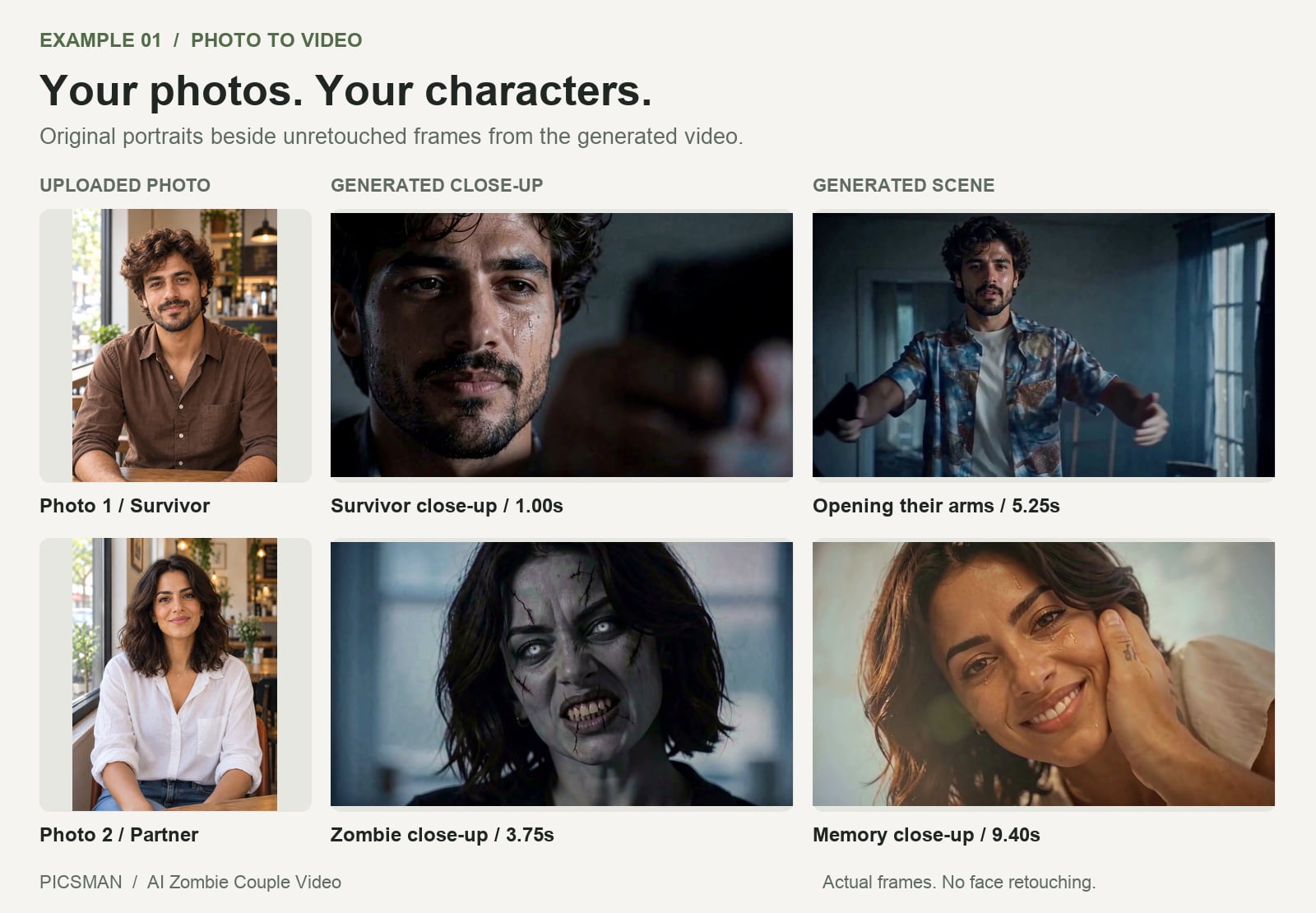
Look closely: compare the man’s curls and beard, then the woman’s facial features across her portrait and both close-ups. The lighting and expression change with the story.
Example 2: A new cast in the same dramatic setting
The second pair uses simple portraits against a plain background. The red-haired man takes the survivor role, while the short-haired blonde woman appears as the zombie partner and in the ending close-up.
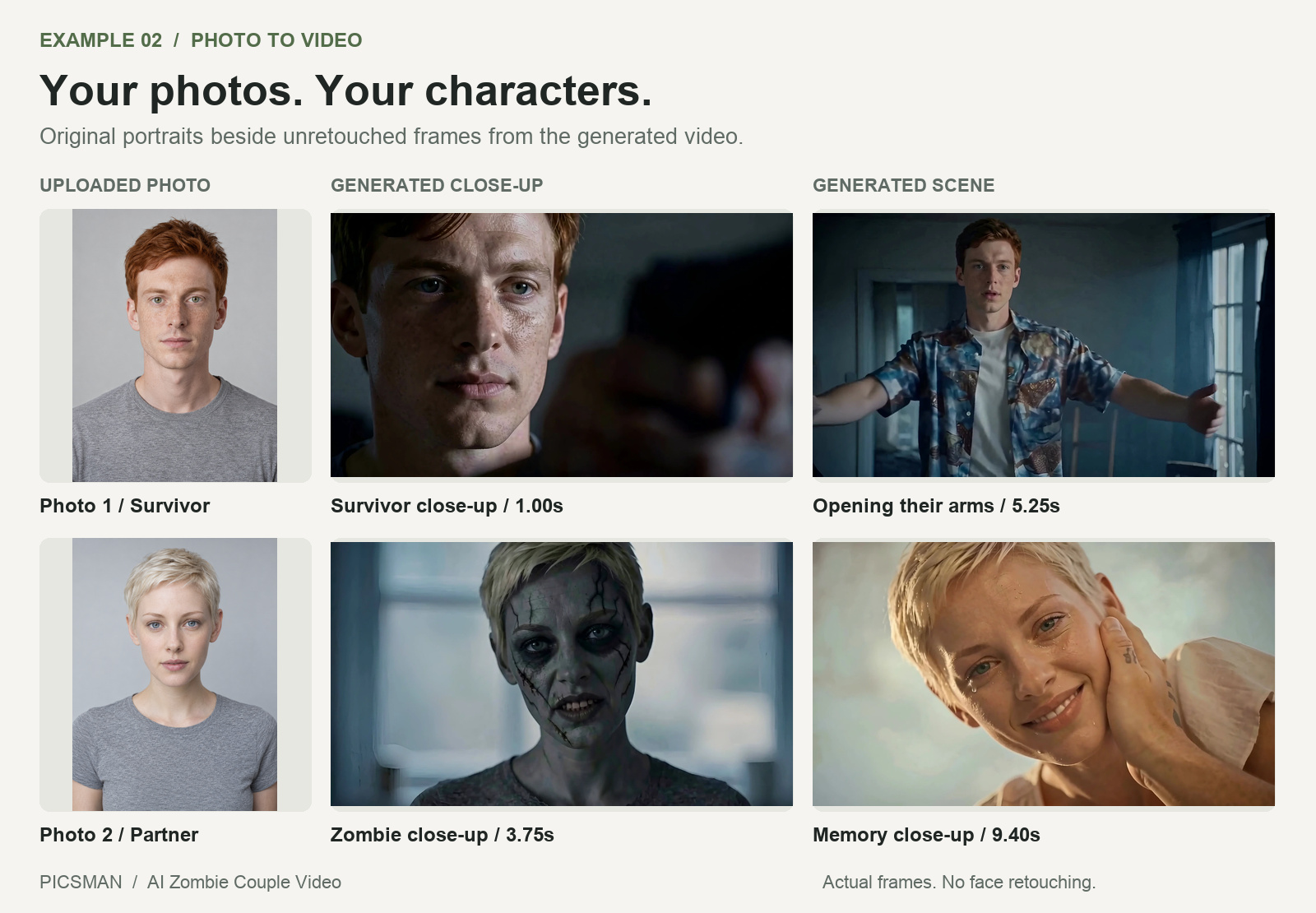
Look closely: the woman’s short blonde hairstyle is visible in both featured close-ups. You do not need a costume, a dramatic background, or a photo taken on a movie set to get started.
Example 3: Distinctive features make the comparison clear
The third pair features a bald, bearded man and a woman with a dark bob and bangs. Their distinctive looks make it easy to compare the portraits with the generated characters.
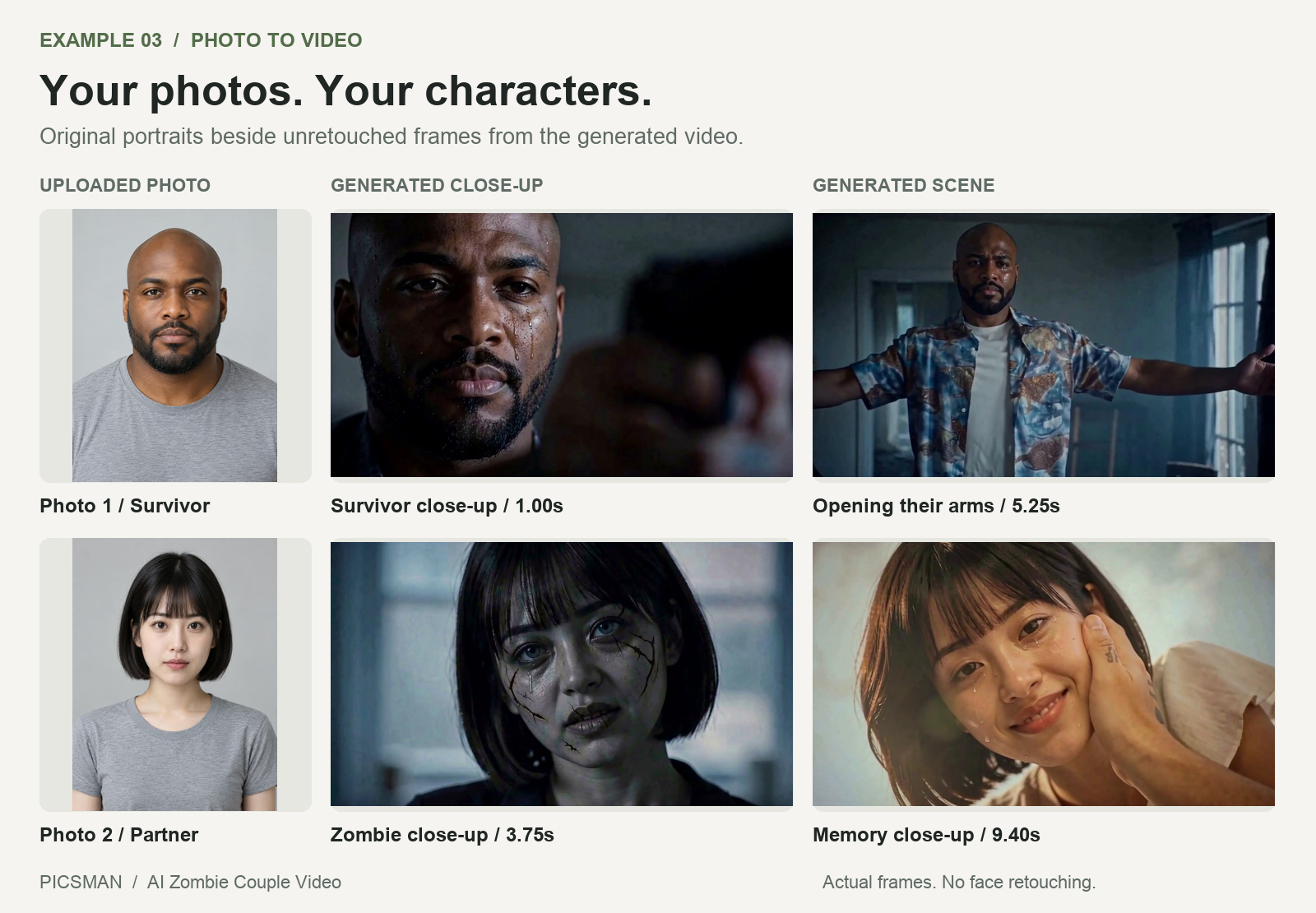
Look closely: follow the man’s head shape and beard from portrait to survivor, then compare the woman’s bob and facial features between the zombie and memory shots.
These examples show what to look for when reviewing your own result. Facial detail and motion can vary between generations, especially during fast movement or when a face is partly hidden.
Make Your Own AI Zombie Couple Video →
4. How to Make Yours with the One-Click Template
You do not have to recreate the scenes yourself. Once your photos are in the template, one click on Generate starts the complete video creation process.
Step 1: Add your two photos
Open the Picsman AI Zombie Couple Video Generator. Upload the person who stays human in photo 1 and the person who becomes the zombie in photo 2. Use one clear face per photo.
Step 2: Open the template and click Generate
Click Generate Zombie Couple Video to open the editor with your photos in place. Check the two portraits and the displayed credit cost, then click Generate. The story and scenes are already prepared, so you do not need to write a prompt or arrange the shots.
Step 3: Download your finished story
When the result is ready, preview it and download the MP4. You can keep it as a personal clip, send it to your partner, or share it as a Halloween or couple-themed post.
That is what makes the template convenient: you choose the people, and Picsman takes care of creating and putting together the video.
5. Photo Tips for a Closer Match
- Use a clear, recent portrait. Choose a photo that looks like the person today.
- Keep the face visible. Avoid sunglasses, hands across the face, or hair covering the eyes.
- Choose even lighting. Facial details are easier to see when the image is neither too dark nor overexposed.
- Keep one person in each image. If you have a couple photo, crop it into two separate portraits.
- Check the upload order. Survivor first, zombie partner second. Swap them to switch roles.
You do not need to match the template’s outfits or location. The café portraits and plain-background portraits above both provide a starting point for the same story.
6. FAQs
Do I need a prompt or a source video?
No. To use the Zombie Couple template, upload your two photos. The scene setup and story are already included.
What does “one-click” mean?
After adding your photos and opening the template editor, click Generate to start the full process. You do not need to create or edit each scene separately.
Will the video keep my photo’s clothes and background?
The template is designed to put your likeness into its cinematic scenes. The scene’s wardrobe, setting, and lighting guide the result; your upload does not need to match them.
Can I choose who becomes the zombie?
Yes. The second photo is the zombie partner. Reverse the photo order if you want to switch roles.
Does generation use credits?
Yes. Check the credit cost shown in the editor before generating your video.
Will every frame look exactly like my photo?
The template aims to preserve recognizable facial features while changing pose, expression, and lighting. Results vary, so preview the full clip before sharing.
Put Yourselves in the Story
Start with two photos and give them a very different setting: a dark room, a difficult choice, and a memory worth holding onto. The comparisons above show the appeal—familiar faces inside a carefully composed cinematic story, with a simple template to bring it together.