
 By Neil
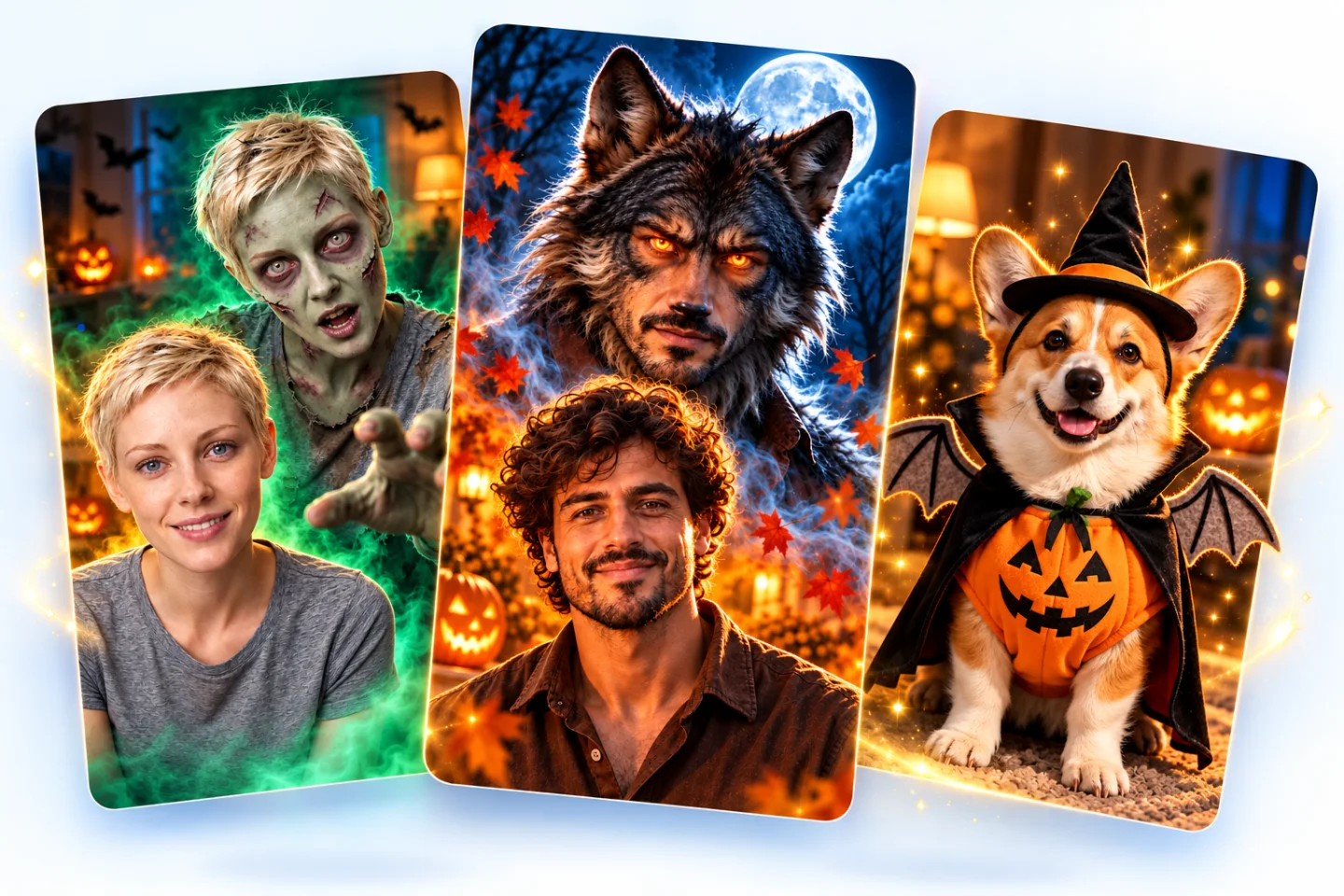
Your selfie starts with a familiar smile. The lights flicker, green mist enters the room, and suddenly you are the zombie looking back at the camera. Or perhaps you would rather turn into a wolf beneath a full moon. You can build either Halloween moment from a single photo, without filming a transformation or putting on a costume.
The quickest route is to choose a ready-made effect in the Picsman Halloween video generator, replace the reference photo with your own, and generate. This guide walks you through that setup, then shows how to customize the scene with your own prompt and model settings. There is also a pet costume option for a lighter Halloween post.
About the five-minute plan: set aside five minutes to choose your photo, pick a template, review the settings, and submit your video. AI processing, queues, account setup, and any retries take additional time; five minutes is not a guaranteed delivery time.
- Make a Halloween video with a template
- Customize your video with a photo and prompt
- Get a clearer, more recognizable result
- Frequently asked questions
Method 1: Make a Halloween Video with a Ready-Made Template
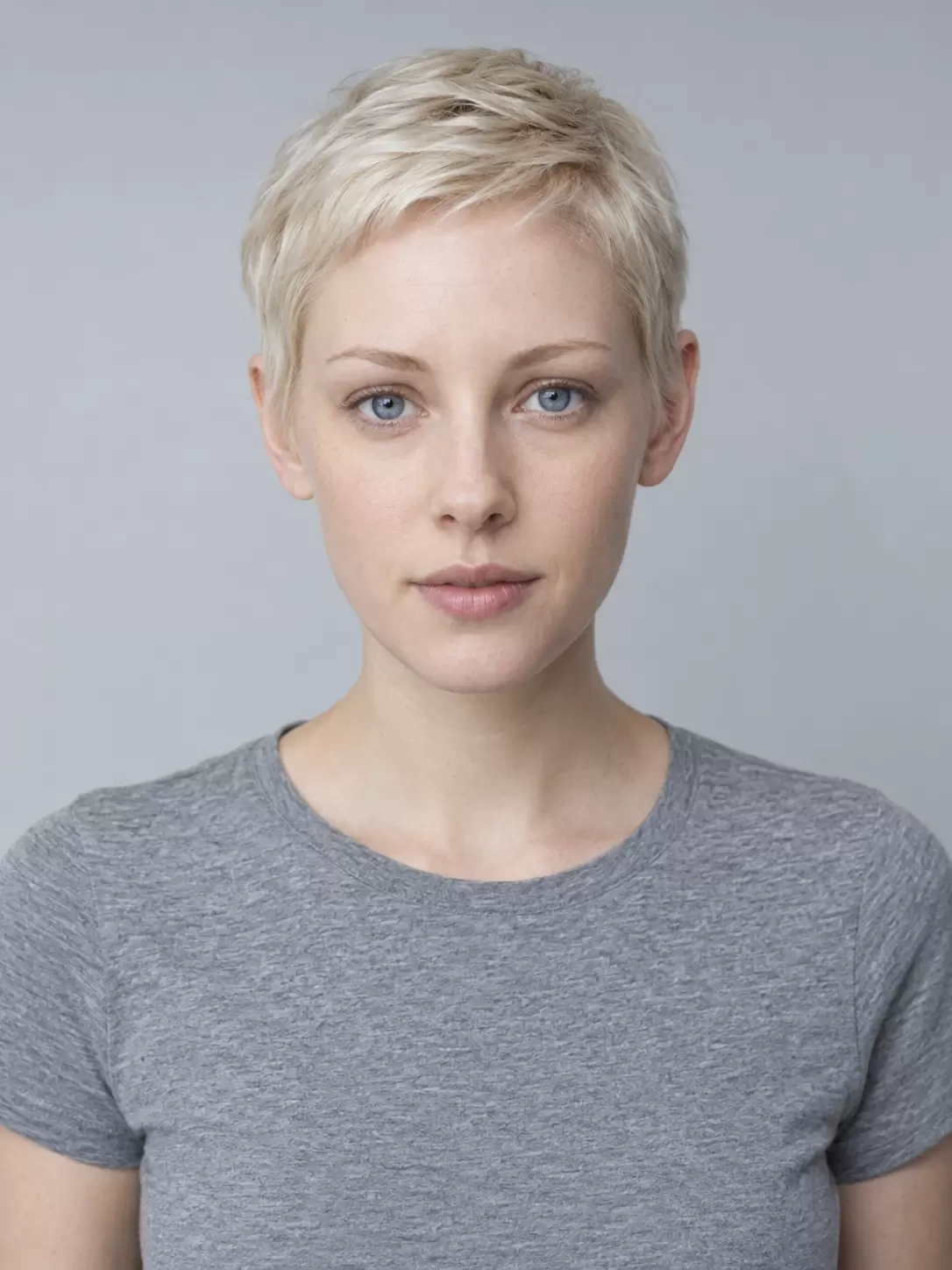
Have a clear photo ready before you start. For the two human transformations, use one person with a visible face and enough space around their head. A simple portrait works well as a reference; you do not need a Halloween background in the original image.
Step 1: Open the Halloween Video Generator
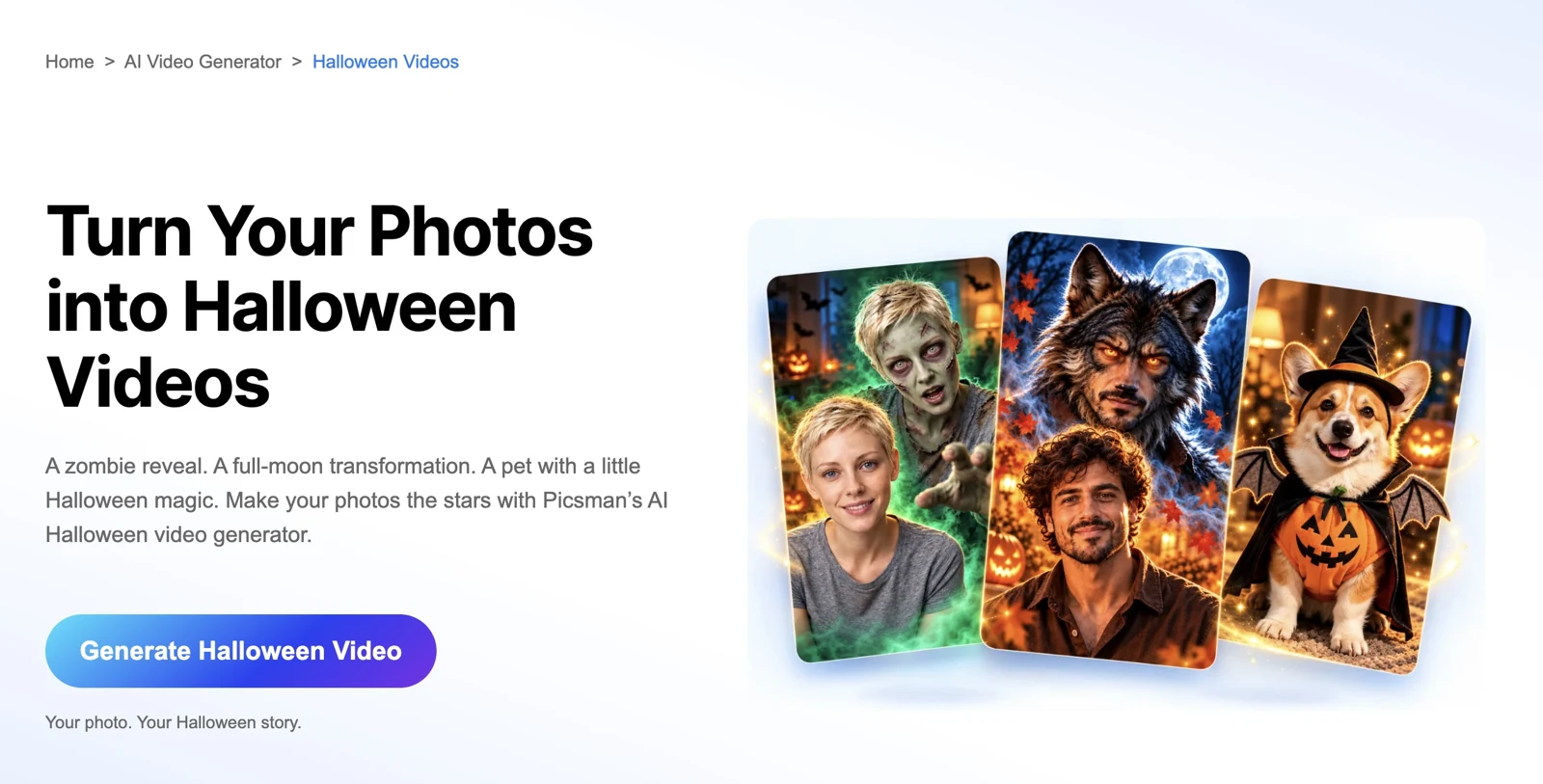
Visit the Halloween videos page. You can switch between the zombie, werewolf, and pet examples to compare an original photo with a finished clip. When you have a look in mind, click Generate Halloween Video to open the editor’s Halloween collection. Sign in if prompted.
Step 2: Choose Your Halloween Look
Look for the matching effect in the Halloween collection and click Try it. These three templates each use a 10-second vertical setup. Watch the example before choosing: the opening, transformation, and ending matter more than the cover image alone.
Zombie Switch: Turn Your Selfie into a Zombie Reveal
Zombie Switch begins with an ordinary portrait in a cozy room. A lamp and pumpkins give the opening a warm feel; green mist and flickering lights introduce the change. The reveal keeps the attention on the face, with pale eyes, zombie makeup, a head tilt, and a hand reaching toward the camera.
Choose this for a spooky greeting or a before-and-after reveal. A front-facing photo with your entire hairstyle visible gives the scene a clear starting point. The template asks the model to carry details of your original clothing into the transformation.
Moonlit Werewolf: Build a Cinematic Monster Moment
Moonlit Werewolf starts outside a warmly lit home decorated for Halloween. As the transformation begins, amber eyes and fur change the subject’s appearance. The porch gives way to a dark outdoor scene, ending with a wolf howling beneath a full moon.
This is the choice for a larger transformation and a dramatic change of setting. Use a clear portrait, but expect the finished character to look much less human than the zombie version. The example below shows how far the effect can take the original face.

Bonus: Halloween Pet for a Cute Costume Reveal
Your pet can have a Halloween moment, too. Halloween Pet adds a pumpkin outfit, witch hat, vampire cape, and small bat wings one after another. Sparkles connect the costume changes, and the pet finishes with a blink and a little head tilt.
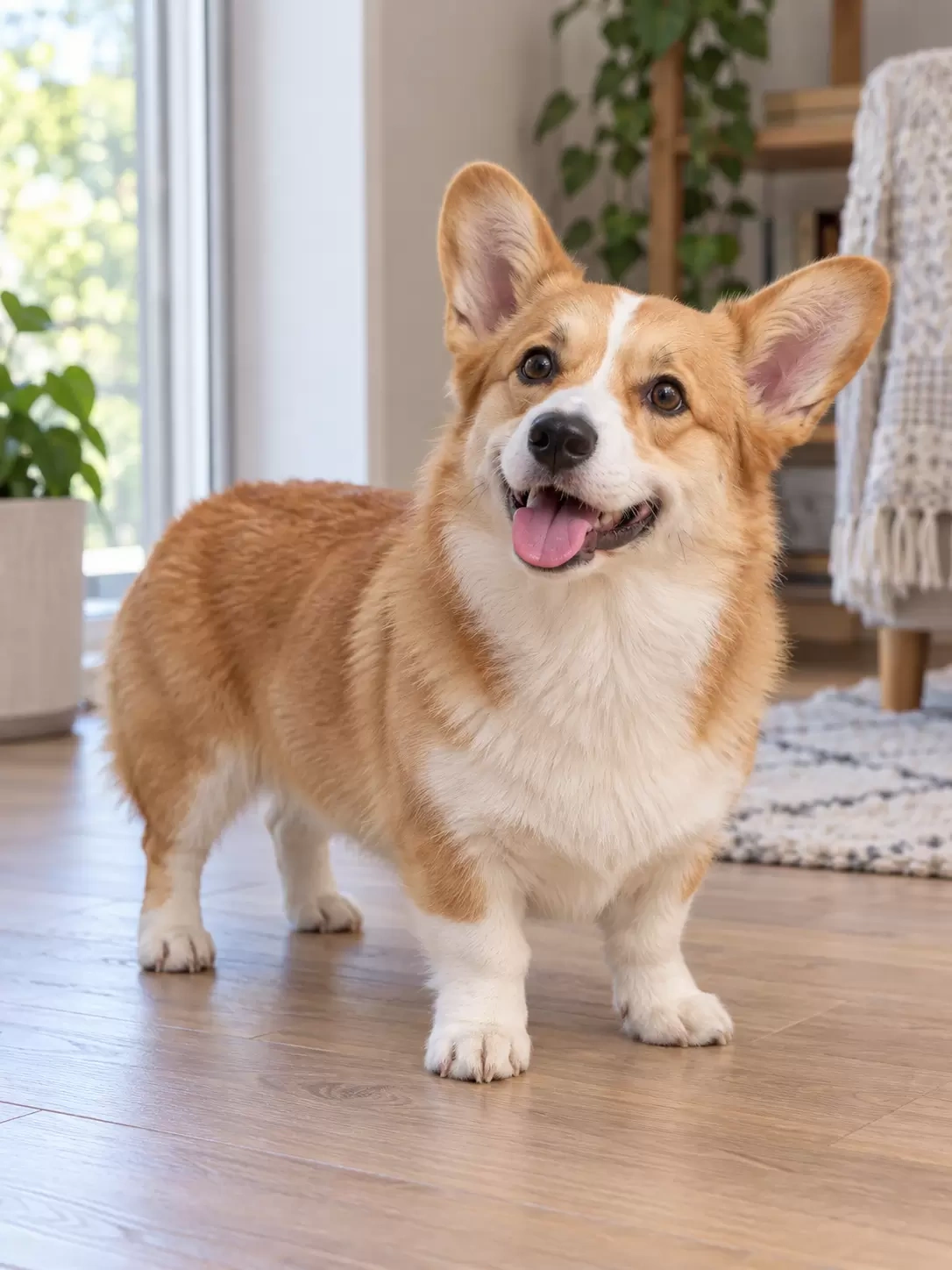
Choose a photo that clearly shows your pet’s face, ears, and distinctive fur markings. This template changes the outfit and setting while asking the model to preserve the animal’s appearance. It is a useful option for a cheerful greeting or a pet account.
Step 3: Replace the Reference Photo and Review Your Settings
Inside the template, click the upload control in the Reference area and select your photo. Make sure the reference preview shows the person or pet you want in the video. You do not need to write a prompt: the template already contains the scene and action instructions.
Review the available Model and Quality settings, then check the credit amount on the Generate button. The available quality options depend on your model. For example, Seedance 2.0 fast offers 480p and 720p, while Seedance 2.0 also offers 1080p.
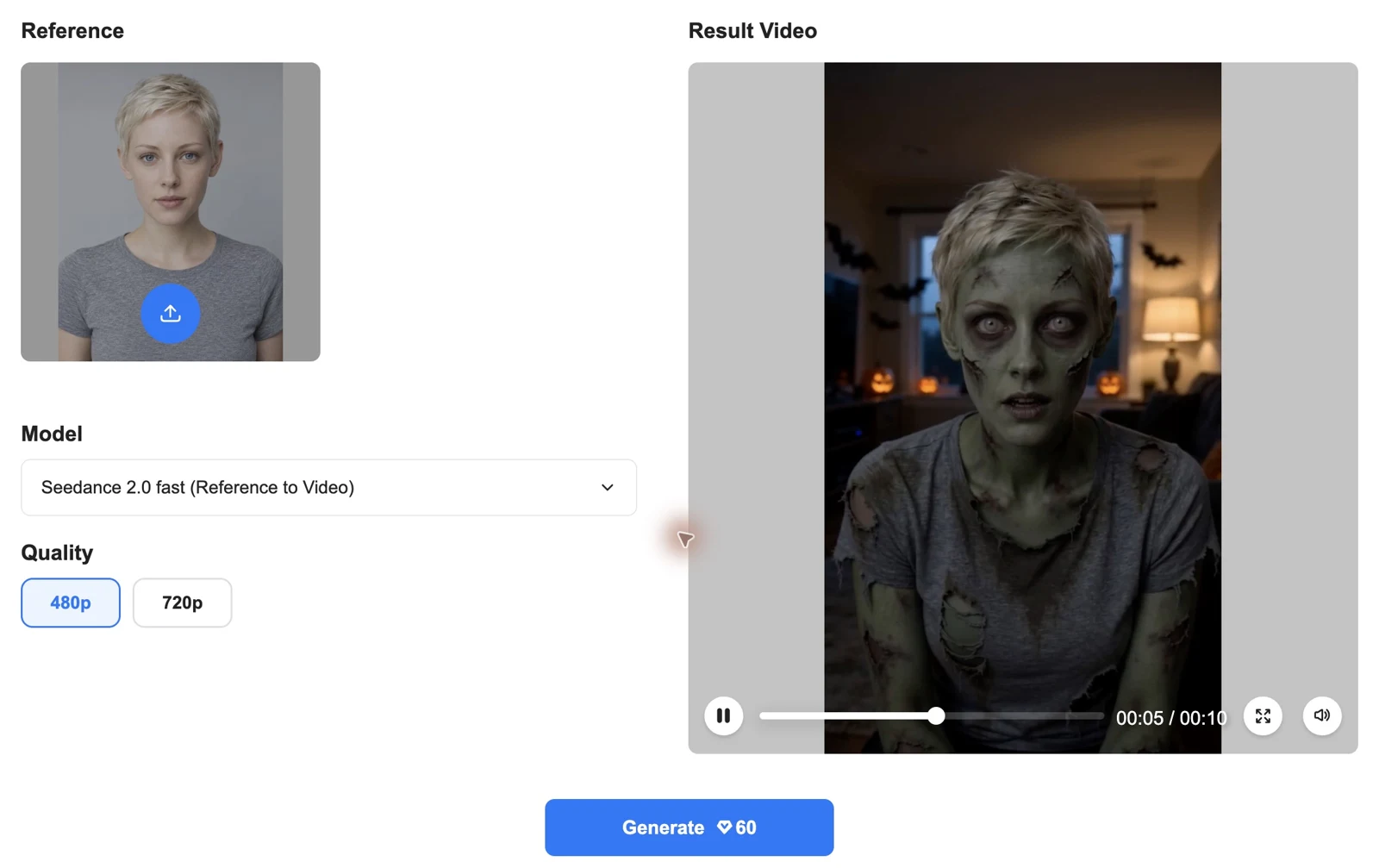
Step 4: Generate, Preview, and Download
Click Generate when the reference and settings are ready. Once your result is available, watch the entire clip. Check that the opening resembles your photo, the transformation is readable, and the final action finishes cleanly. Listen to the audio as well if it is included.
Download the result when you are happy with it. The vertical format suits a Halloween Story, Reel, Short, or a quick message to friends. Add a caption such as “My Halloween costume arrived early” when you post.
Method 2: Customize Your Halloween Video with AI Prompts
A template handles the creative decisions for you. For your own location, costume, camera movement, or ending, open the AI Video Generator and build the scene around your photo. You can keep the same basic transformation while changing the details that make it yours.
Step 1: Select Reference to Video and Add Your Photo
Expand the prompt panel and change the creation mode to Reference to Video. Click Image/Video/Audio to add your portrait. This mode is a practical starting point for the Halloween scenes here because it can use your photo as a character reference while creating a different setting and pose.
After adding the photo, check its thumbnail. In the editor shown below, the first image is labeled @image1. Keep that reference in the prompt, or type @ and select the uploaded image when you need to insert it. With one portrait, the instructions can simply refer to “the person in the reference photo.”
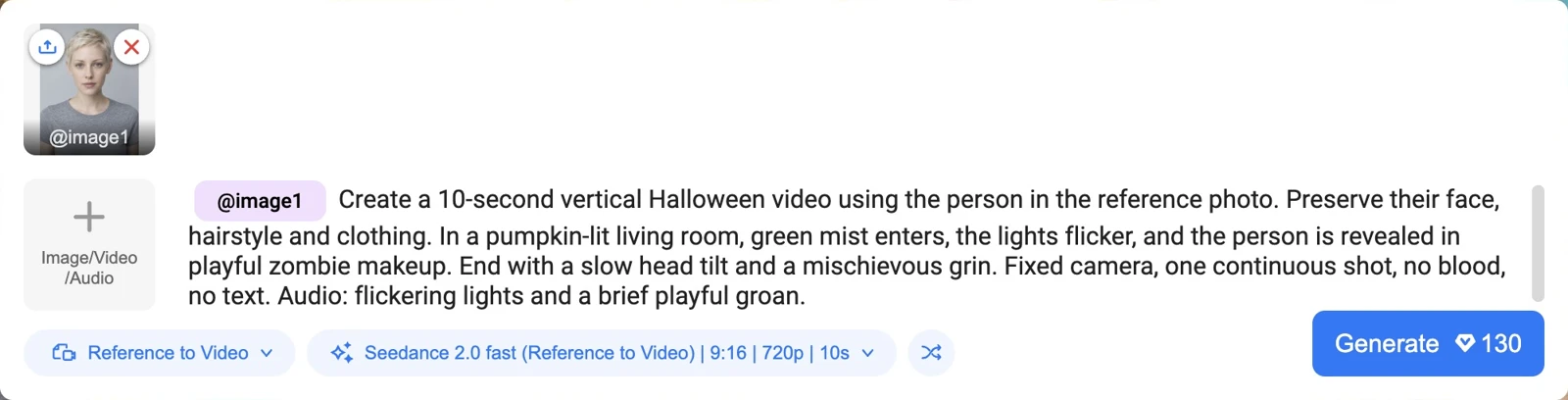
Step 2: Choose a Model and Set the Video Format
The Halloween templates use the Seedance reference-to-video models. You can use the same family for a custom version:
| Your priority | Model | Available quality |
|---|---|---|
| Try and refine a scene | Seedance 2.0 fast (Reference to Video) | 480p or 720p |
| Create a 1080p version | Seedance 2.0 (Reference to Video) | 480p, 720p, or 1080p |
For a first attempt at one of these scenes, choose 9:16 and 10 seconds. A 720p draft lets you review the composition and action before deciding whether you want a 1080p version. Change the duration and aspect ratio in the actual controls; writing them in the prompt alone does not replace those settings.
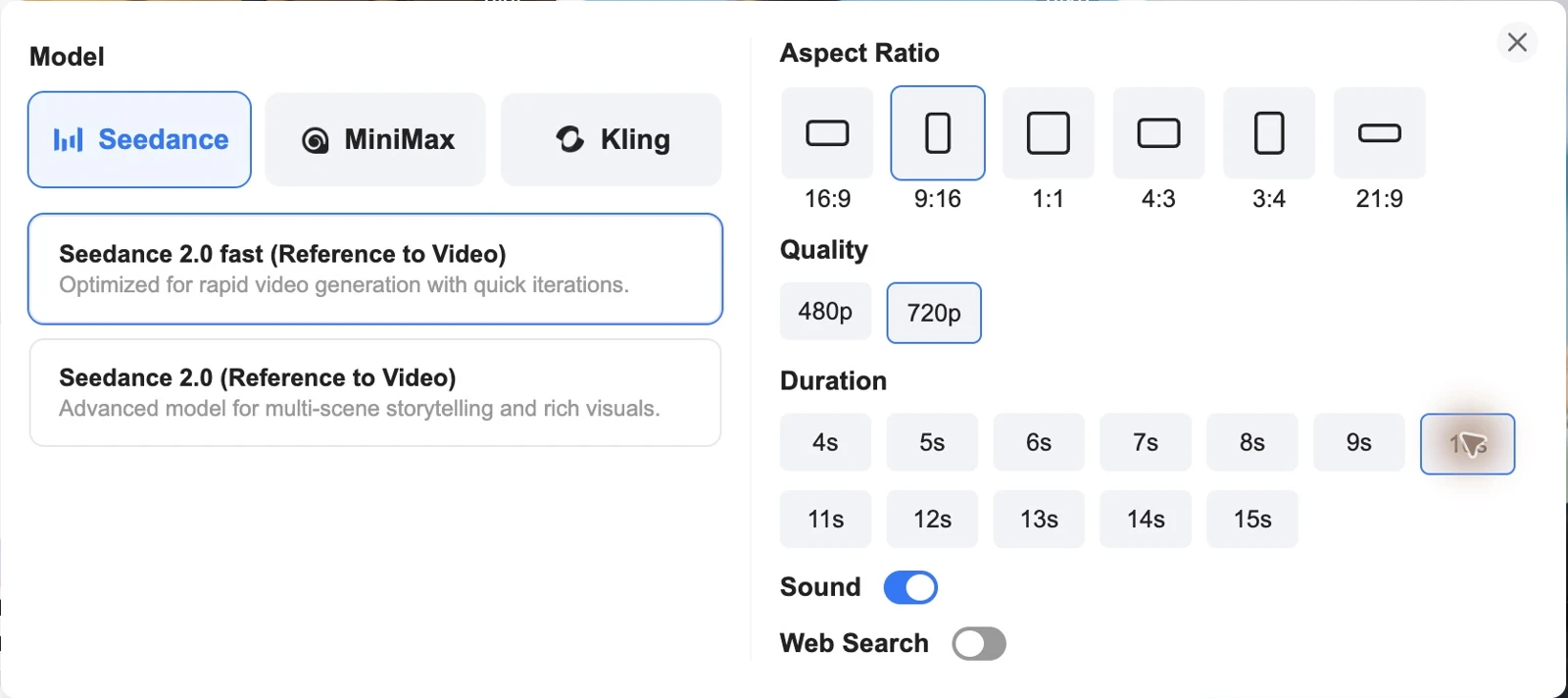
Turn on Sound if you want generated audio and describe it in your prompt. A brief groan, rustling leaves, or costume “pop” sounds can give the reveal a clear ending. Review the displayed credit cost after changing settings; it is not a fixed price for every Halloween video.
Step 3: Copy a Halloween Prompt and Make It Yours
Use these shorter adaptations of the template ideas as starting points. Upload your image first and link it using the editor’s image reference. The prompts describe the intended result; a custom generation can differ from the existing examples above.
Prompt 1: A Playful Zombie Switch
Create a 10-second vertical Halloween video using the person in the reference photo. Preserve their recognizable facial features, hairstyle, hair color, and clothing before the transformation.

Begin with a warm smile in a cozy living room decorated with glowing pumpkins. Thin green mist enters from the edges without covering the face. The lights flicker and briefly go dark. When they return, reveal the same person with gray-green zombie makeup, pale eyes, and a slightly disheveled version of their original hairstyle and outfit.

End with a slow head tilt, one hand reaching toward the camera without hiding the face, and a mischievous grin. Fixed camera, one continuous shot, realistic Halloween makeup. No blood, wounds, additional people, or text. Audio: flickering lights, a low rumble, and a short playful groan.
Make it yours: replace the living room with a candlelit hallway, or replace the reaching hand with a small wave. Keep the face visible throughout the reveal. For a friendlier version, ask for “playful costume makeup and a cheerful smile.”
Prompt 2: A Moonlit Werewolf Transformation
Create a 10-second vertical Halloween transformation video using the person in the reference photo. Begin with their recognizable human face, original hairstyle, and clothing.

They stand on a pumpkin-lit porch at night, smiling at the camera. Cold blue moonlight reaches their face. Their eyes glow amber, fur appears, and their features gradually transform into a wolf-like creature.

Keep the subject visible as the warm porch dissolves into a dark outdoor clearing. Complete the background transition before revealing a full moon in the open sky. Gently pull the camera back as the creature raises its head to howl and autumn leaves blow past.

Use fluid motion, realistic fur, and cinematic moonlight. No blood, gore, additional characters, or text. Audio: wind, rustling leaves, and one final howl.
Make it yours: start at a cabin or a garden gate. To keep more of your face recognizable, request subtle wolf makeup and pointed ears instead of a complete creature transformation. Choose one ending so the clip has time to resolve.
Prompt 3: A Halloween Costume for Your Pet
Create a 10-second vertical Halloween video using the pet in the reference photo. Preserve its species, facial features, ear shape, fur color, and distinctive markings.

The pet sits facing the camera in a warm living room. Keep the whole body visible, leaving space above the head and beside the shoulders. With golden sparkles and a soft pop, add an orange pumpkin outfit, then a small black witch hat, then a short vampire cape, and finally soft bat wings. Each piece stays on after it appears.

The wings flap twice. End with the pet blinking and gently tilting its head while remaining seated. Fixed camera, one continuous shot, natural proportions, cute mood. No extra animals, extra limbs, text, or watermarks. Audio: soft pops, delicate sparkle sounds, and light playful Halloween music.
Make it yours: change the costume colors or use only the pumpkin outfit and hat. Fewer accessories give the scene more room for a natural blink or head tilt. Keep the instructions about fur markings and body proportions.
Step 4: Review Your Prompt, Then Generate
Before submitting, check that the photo, prompt, and controls agree. If the prompt describes ten seconds of action, select ten seconds in the duration menu. If you want an audible howl, enable Sound as well as describing the howl. Then check the credit cost and click Generate.
When the result is ready, identify the one thing you most want to improve. If the face changes too soon, ask for a longer human opening. If the scene feels rushed, remove an action. If the background distracts from the transformation, use a fixed camera and a simpler setting. Change that part of the prompt before trying again.
Photo and Prompt Tips for a More Recognizable Result
- Give the model a clear face. Use a sharp, well-lit portrait with visible eyes. Avoid a hand, phone, or heavy shadow covering the face.
- Leave space around the subject. Include the whole head and hairstyle. For a pet costume, a clear full-body image can help show proportions.
- Keep a short clip focused. One transformation and one final gesture are enough for a complete Halloween moment.
- Say what should stay consistent. Mention the original hairstyle and clothing for a human, or fur markings and ear shape for a pet. These are instructions, not a guarantee of an exact match.
For a gentler Halloween video, use warm light, playful expressions, and costume details. For a more dramatic one, describe cooler light, a slower reveal, and a single deliberate movement. Specific visual choices are more useful than asking for “the best scary video.”
Frequently Asked Questions
Can I make a Halloween video from one selfie?
Yes. Zombie Switch and Moonlit Werewolf each use a single portrait as their reference. Upload a clear photo of yourself, choose the effect, and review the result. The model creates the motion and setting, so your pose and background may change.
Do I need a prompt to use a Halloween template?
No. The three templates in this guide already contain their scene instructions. Use the custom prompt workflow when you want to change the setting, transformation, movement, or ending.
Will my video be finished in five minutes?
The five-minute plan covers choosing a photo, setting up the effect, and submitting the request. Processing and queue times vary, and revisions take longer. Check the progress shown in the editor rather than relying on a fixed completion time.
Can the video include Halloween sound effects?
Yes, when the selected model and settings support sound. In the Seedance reference workflow shown here, enable Sound and describe the audio you want. Listen to the finished clip before sharing it.
How many credits will it use?
The amount depends on the model, quality, duration, and other settings. Review the current total on the Generate button before submitting. An amount visible in a tutorial screenshot applies to that configuration and may change.
Can I make a cute Halloween video instead of a scary one?
Yes. Try Halloween Pet, or customize a portrait scene with gentle costume makeup, warm pumpkin light, and a friendly wave. Keep the prompt playful and describe the expression you want at the end.
Make Your Photo the Start of a Halloween Story
Start with Zombie Switch for a quick portrait reveal, choose Moonlit Werewolf for a dramatic creature transformation, or let Halloween Pet handle the costume changes. Once you know the look you want, a single reference photo is enough to begin.
Open the Picsman Halloween video generator to choose a template, or use the AI Video Generator and the prompts above to create your own scene.