
 By Neil
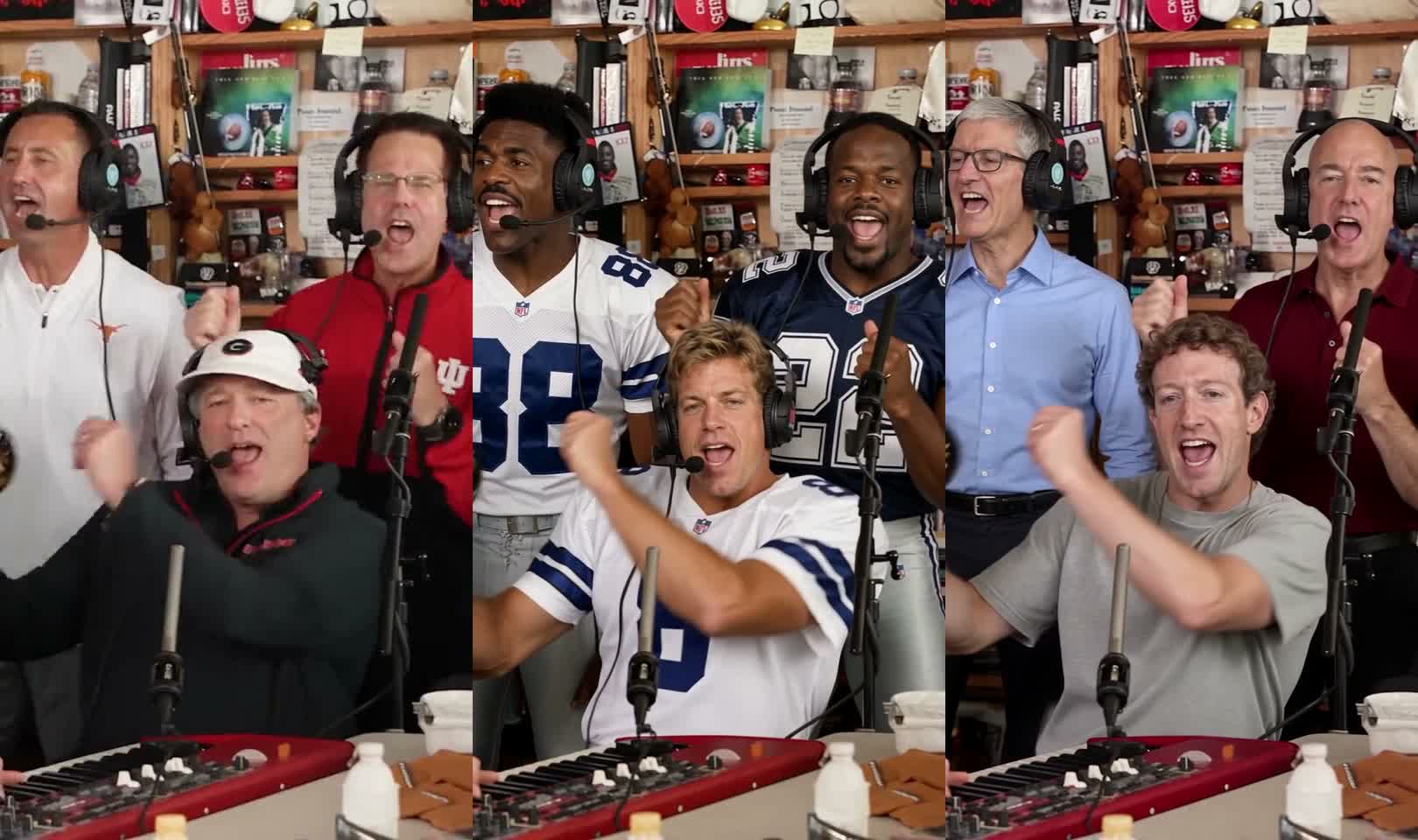
A football coach takes the mic. Elon Musk replaces him in the next version. The bookshelves, keyboard and familiar performance are still there—but the band looks completely different.
That is the appeal of an AI Tiny Desk video. With the Picsman Tiny Desk AI Video Generator, your photos become the cast of a prepared performance. The interesting part is how the faces and outfits fit into the moving scene, from a solo close-up to several performers sharing the frame.
Below, compare the original reference, Football Legends and Tech Leaders in one synchronized video. Then look more closely at the uploaded portraits and actual result frames before making your own.
The celebrity examples are AI-generated parody demonstrations, not real performances or endorsements. The people depicted did not participate in this project. Picsman is not affiliated with NPR, Tiny Desk or the Dallas Cowboys.
One Performance. Three Very Different Casts.
Play the comparison and watch the same moment across all three columns. Start with the keyboard player and backing singers, follow the cut to the lead singer, and then look at the saxophone shot.
The room provides an immediate point of comparison. The shelves behind the performers, the desk in front and the instruments make the location recognizable across the versions. The shot sequence also gives you matching moments to inspect rather than three unrelated performances.
Next, follow the movement. Compare a head turn, the keyboard player’s raised arm and the backing singers’ expressions. In these examples, the generated performers follow the reference’s broad performance and framing while bringing different faces and clothing into it. Small gestures and facial movements can differ; watch through the clip rather than judging from the opening frame alone.
Put Your Own Cast in the Performance →
The Details That Make a Replacement Convincing
There are two things to compare: whether the result still looks like the uploaded person, and whether that person fits the performance. The examples below show both at work.
Football Legends: a recognizable coach in the lead role
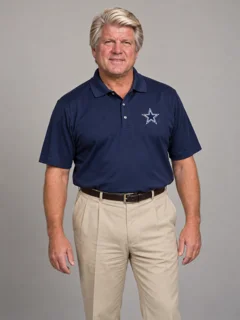 Uploaded portrait
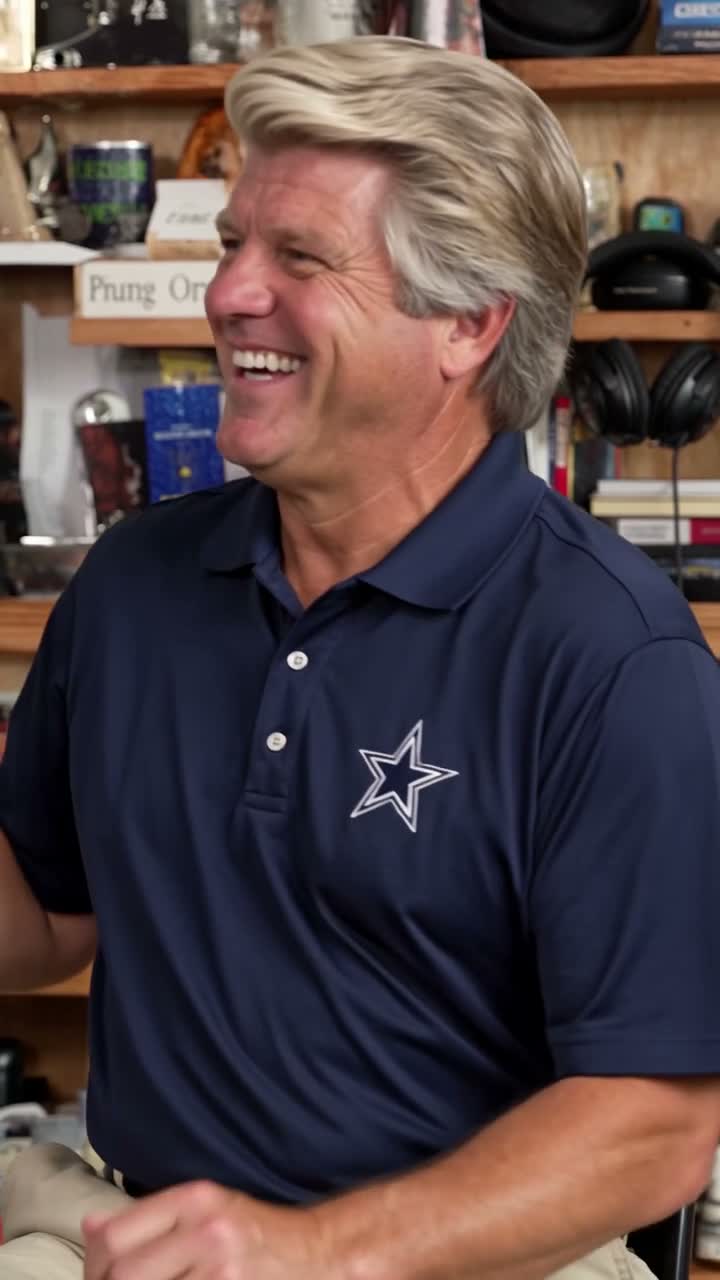 Actual video frame
The Football Legends version changes the feel of the whole band. A navy polo and familiar football jerseys bring the sports theme into the recording-room setting. During the lead-singer close-up, look at the hair silhouette, face shape and shirt as the head moves. Those details make the character recognizable beyond a single front-facing pose.
Return to the opening group shot to check the other performers. The keyboard player and backing singers occupy the corresponding positions, so the new cast still reads as a band performing together.
Tech Leaders: Elon’s face—and his outfit—carry into the scene
 Uploaded portrait
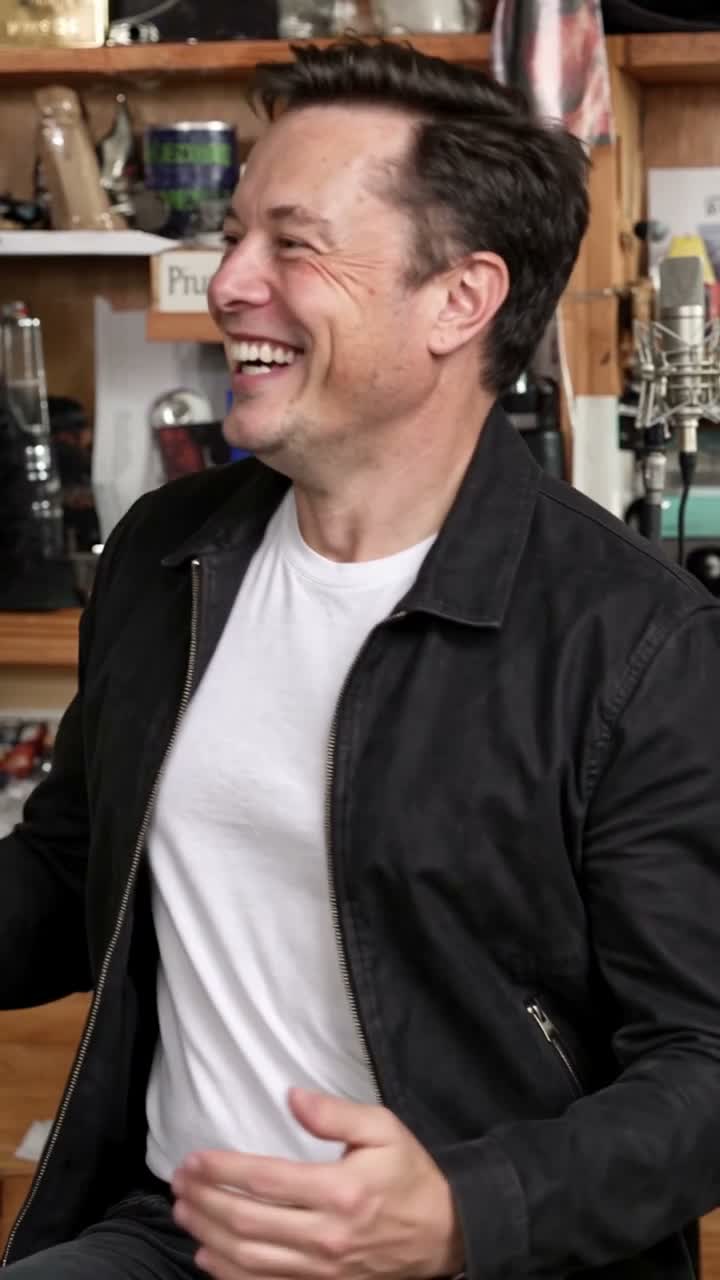 Actual video frame
Elon’s close-up makes the clothing comparison especially clear. The black jacket and white shirt remain recognizable in the result, alongside the face and hairstyle. The pose and expression change, while the surrounding room still connects the shot to the original performance.
This is why a waist-up portrait can be useful: it gives the model more visible information about the person’s outfit. It does not guarantee that every seam or accessory will be reproduced, but it supplies more than an isolated face.
Jensen on sax: identity through a different pose
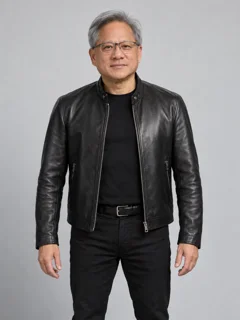 Uploaded portrait
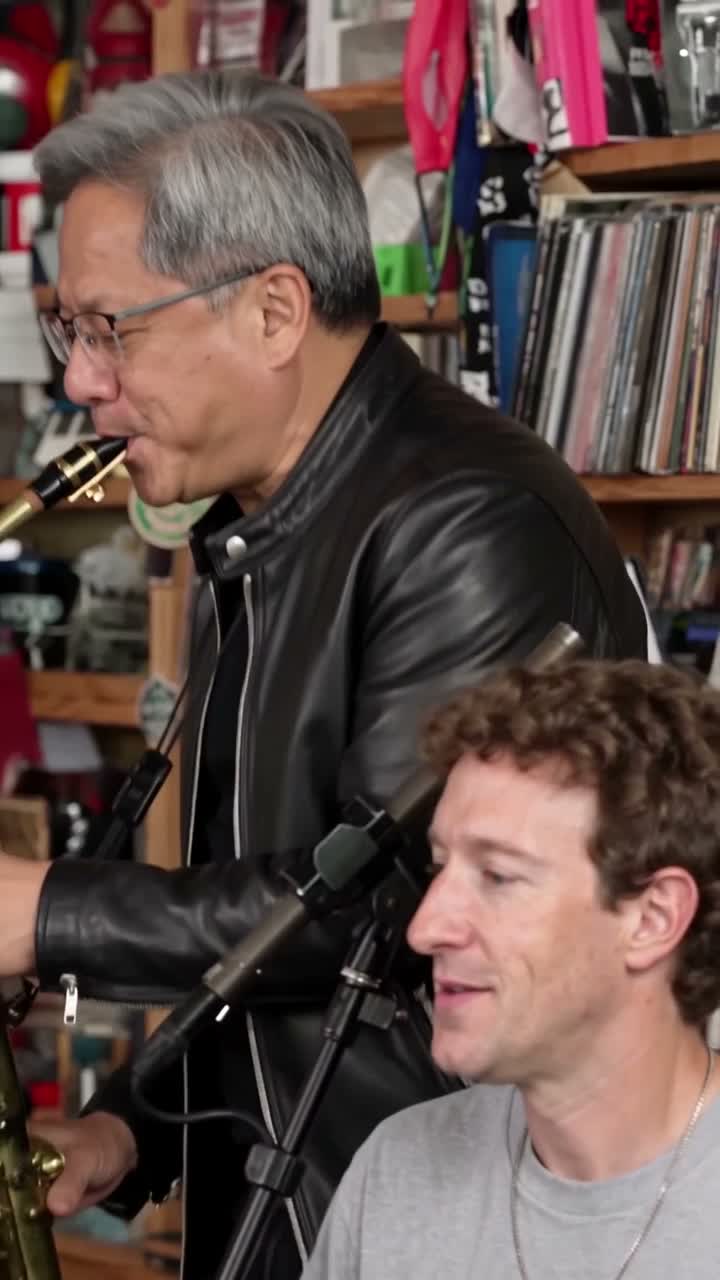 Actual video frame
The saxophone moment is a different test from the lead-singer close-up. Jensen is turned to the side, the instrument meets his mouth, and another performer shares the frame. His glasses, hair and jacket remain recognizable in this example even though the pose differs from the portrait.
For your own result, pay particular attention to the mouthpiece, fingers and instrument edges. These contact points, along with fast head turns and partially hidden faces, are worth checking before you share.
Watch the Full Tiny Desk AI Tutorial
The tutorial opens with the three versions playing together, then walks through the portraits, performance details and upload process. Select 1080p in the YouTube player if automatic playback looks soft.
Watch the Tiny Desk AI tutorial on YouTube.
How to Make Your Own AI Tiny Desk Video
1. Choose the performers you want to replace
Open the Tiny Desk AI template. Choose from the lead singer, keyboard player, sax player and two backing singers. Upload a separate photo for each person you want to add. You can replace one to five performers; leave the other slots unchanged to keep those original performers.
2. Review your photos and generate
Click Make My Tiny Desk Video to continue to the editor. Check that each photo is assigned to the intended performer and review the displayed credit quote before generating. The template already provides the reference performance and shot sequence, so you do not need to write a prompt or assemble the scenes yourself.
3. Preview the full performance and download
When the video is ready, watch every shot. Check recognition in the close-ups, the placement of people in group shots and the interaction with instruments. Download the finished video once you are happy with it, and make clear that realistic AI performances are AI-generated when sharing them.
Choose Photos That Give the AI Useful Detail
- Show one person per photo. Give each performer a separate reference.
- Make the face easy to see. Even lighting and a sharp image give you a clearer starting point than heavy shadows or motion blur.
- Include the waist when the outfit matters. Keep the full head, both shoulders, torso and waist visible. Clear headshots are also accepted, but provide less clothing information.
- Keep distinctive features visible. Hair, glasses and clothing can help make the before-and-after comparison recognizable.
- Check the role before generating. A good portrait in the wrong slot still puts the wrong person at the keyboard or microphone.
Frequently Asked Questions
What is an AI Tiny Desk video?
It is a short, AI-generated performance that places people from uploaded photos into a prepared recording-room scene. The Picsman template lets you change the cast while using the reference performance to guide the shots and movement.
Will the faces stay consistent throughout the video?
The examples show recognizable features across changing poses and expressions. Results vary, especially during quick movement or occlusion. Check the whole clip rather than expecting an exact match in every frame.
Does it preserve the original actions and background?
The reference guides the scene, framing and performance. In the comparison above, the room, instruments and sequence of shots remain closely recognizable. Individual hand movements, mouth shapes and small background details may differ.
Do I have to replace all five people?
No. Upload photos for the performers you want to change, from one person to the full five-person cast. Unselected performers stay as the original cast.
Is generation free?
Generation uses credits. Review the current quote in the editor before you submit; this guide does not promise a fixed price or free generation.
Your Photos. A Different Band.
The Football Legends and Tech Leaders examples show how much the cast can change the feel of a familiar performance. Start with someone you know, choose their place in the band and see how their face and outfit work in motion.
For another photo-to-video story, explore how to make an AI Zombie Couple video, or browse the Picsman AI Video Generator.