
 By Neil
- How to Extend an Image in Photoshop Using Content-Aware Fill
- How to Extend an Image in Photoshop Using Canvas Size (for Solid Colors)
- How to Extend an Image in Photoshop Using Clone Stamp Tool (for Detailed Textures)
- How to Use the Image Extender in Picsman
- Picsman's AI Image Expansion Tool Meets All Your Needs
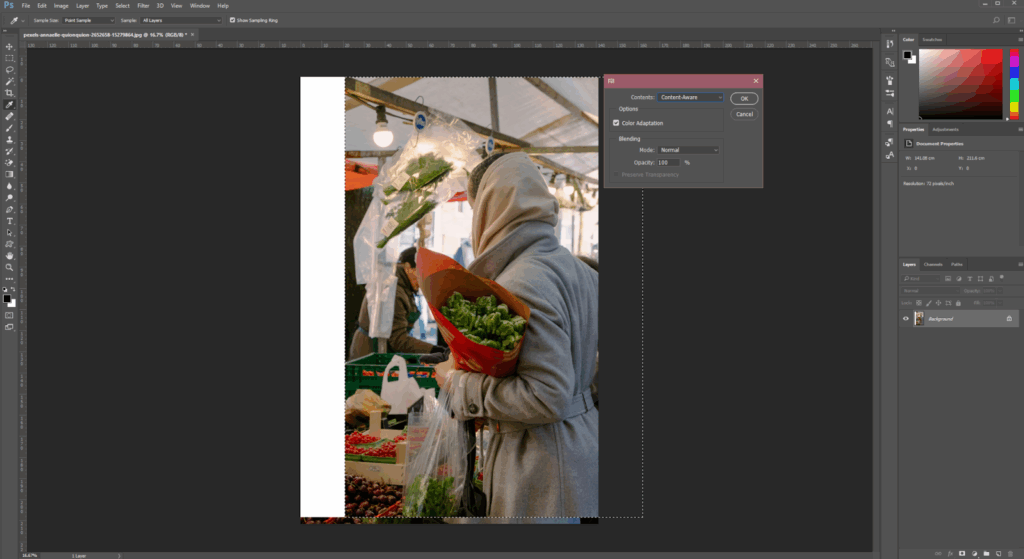
How to Extend an Image in Photoshop Using Content-Aware Fill
① Open your image in the Photoshop editor and prepare to extend the canvas.
② Use the Crop Tool to drag borders outward and extend the canvas size.
③ Select the newly created empty area with the Lasso Tool (for precise selection).
④ Access Content-Aware Fill: Go to Edit > Content-Aware Fill, or right-click > Fill > Contents > Content-Aware.
⑤ Adjust settings in the dialog box and preview the extended area (marked by red overlay).
⑥ Press “Enter” or click “OK” to fill and finalize the extended photo.
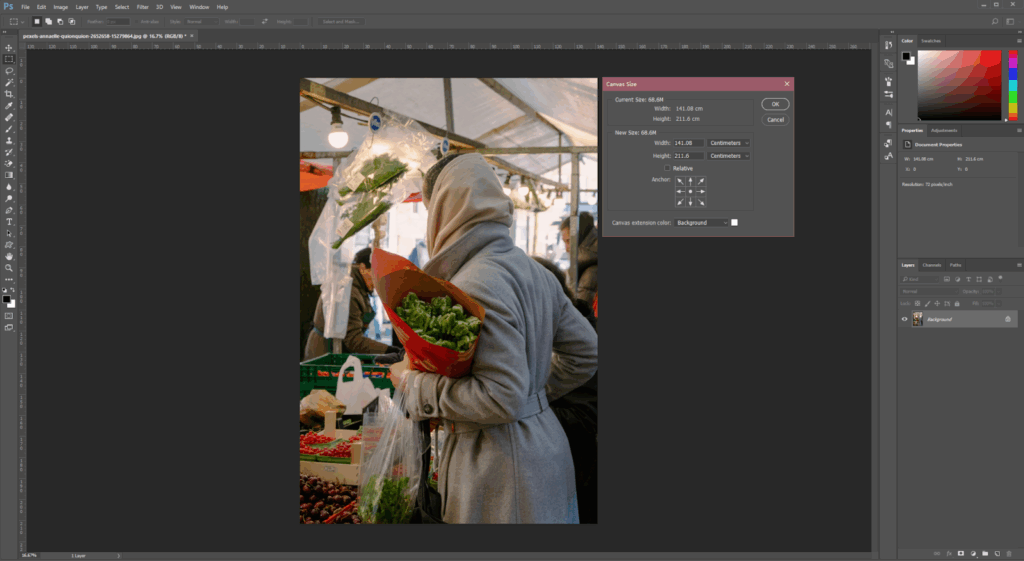
How to Extend an Image in Photoshop Using Canvas Size (for Solid Colors)
① Open your photo in the Photoshop editor and unlock the Background layer if needed.
② Double-click the “Background” layer in the Layers panel of Photoshop, then click “OK” to unlock it (convert to a regular layer for image editing).
③ Go to the top menu of the Photoshop editor, click “Image”, and select “Canvas Size” from the dropdown (Windows shortcut: Alt+Ctrl+C; Mac shortcut: Option+Cmd+C).
④ In the “Canvas Size” dialog box of Photoshop, enter new width/height values for the extend (e.g., add 200px to the width for the left/right background extend).
⑤ Use the anchor point grid to set the extend direction (e.g., click the center anchor for even image extend).
⑥ Select a color for the extended area via the “Canvas extension color” dropdown, then click “OK” to finish the background extension.
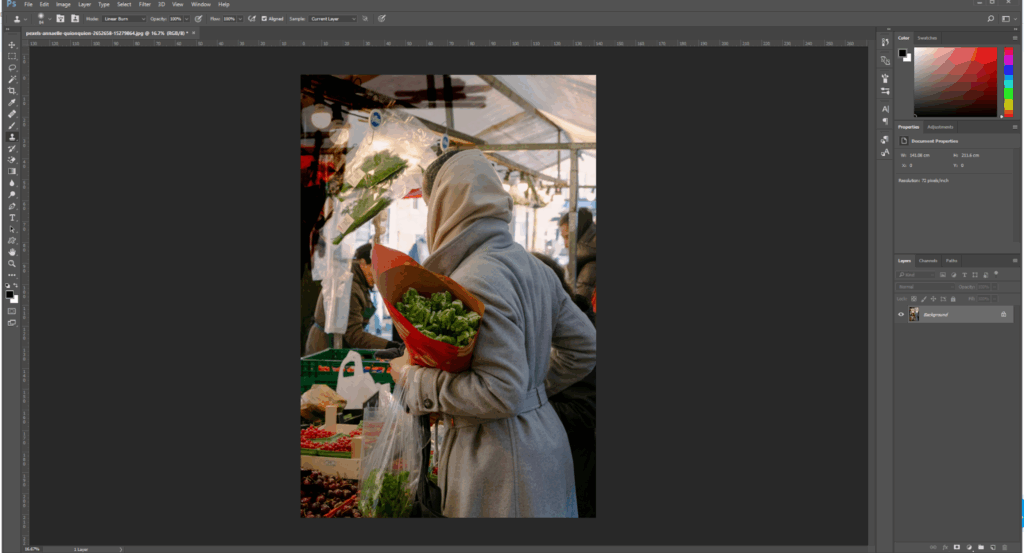
How to Extend an Image in Photoshop Using Clone Stamp Tool (for Detailed Textures)
① Open your photo in Photoshop and select the Clone Stamp Tool from the toolbar (or press “S” as a shortcut).
② Select the “Clone Stamp Tool” from the left toolbar of Photoshop (or press shortcut “S”).
③ Hold the “Alt” key (Windows) or “Option” key (Mac) and click on a part of the original background of the image that you want to replicate (this sets the “source point” for fill).
④ Release the “Alt/Option” key, then click and drag over the blank area where you want to extend the background of the photo.
⑤ Adjust the brush size/opacity from the top toolbar of the Photoshop editor if needed (smaller brushes for fine details in the extended image).
⑥ Repeat the “set source point → paint fill” process until the extended area blends naturally with the original background of the image.
How to Use the Image Extender in Picsman
Without the need to manually extend backgrounds, redraw edges, or adjust proportions,AI image expanders automatically generate seamlessly connected extended parts by capturing the scene logic, color tone, and textural details of the original image, achieving gapless integration; create expansive compositions that break through the boundaries of the original frame; and deliver cohesive final results where the new content aligns perfectly with the existing parts — all with just one click.
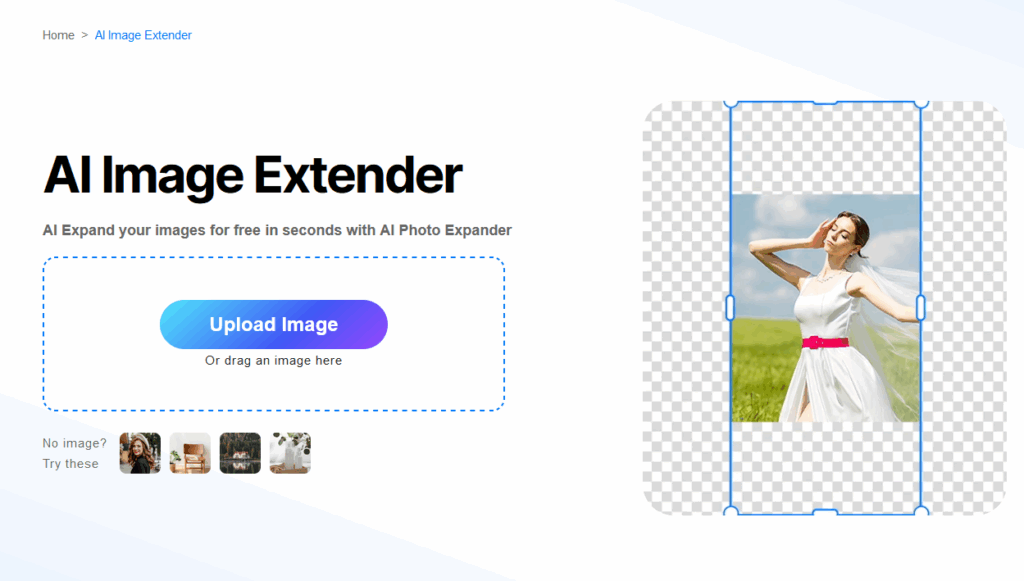
Step1. Upload Your Image
Go to the Picsman website and upload your photo. Whether it’s a portrait or a landscape, the tool will automatically recognize the image format and prepare it for editing.
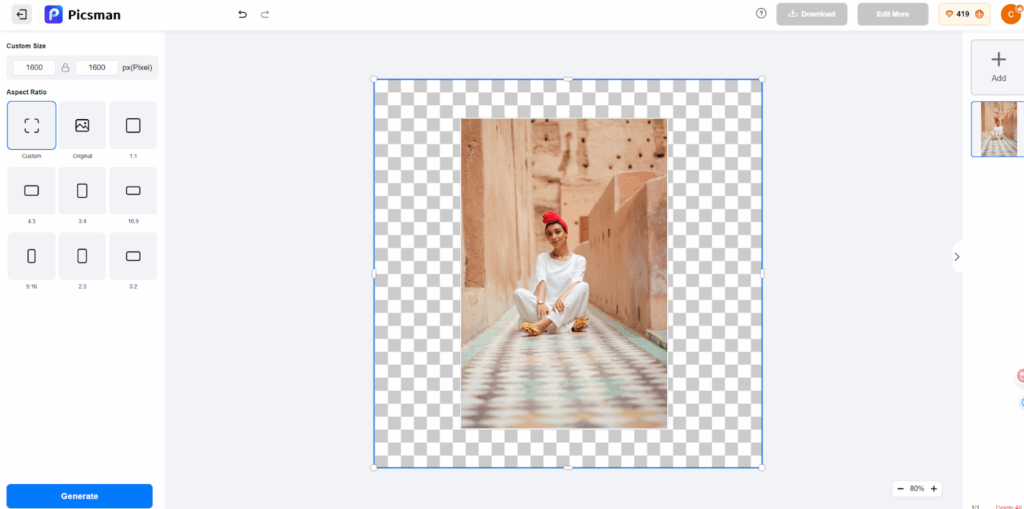
Step2. Adjust and Generate
You can adjust the ratio and the position. Picsman blends the expanded portion seamlessly with the rest of the image. It ensures that the new areas fit naturally with the original, preserving the image’s features and details. Then you can click “Generate”.
Step3. Download the Result
Once you’re satisfied with the results, you can download your image without worrying about losing quality. Thanks to AI photo editing, the final image will retain its original resolution and clarity.
Picsman’s AI Image Expansion Tool Meets All Your Needs
For Product
AI can extend the background while keeping the product itself intact. It smartly creates scenes that match the original style, meeting the publishing needs of multiple platforms.

For Photograph
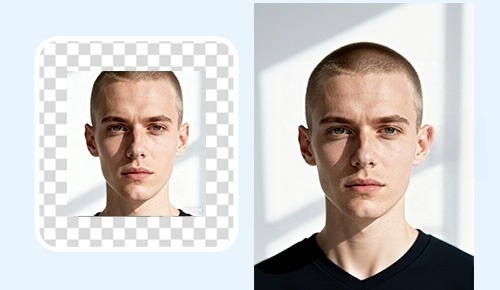
When photos need to be resized, AI intelligently extends the background — without the need to reshoot.
For Social Media
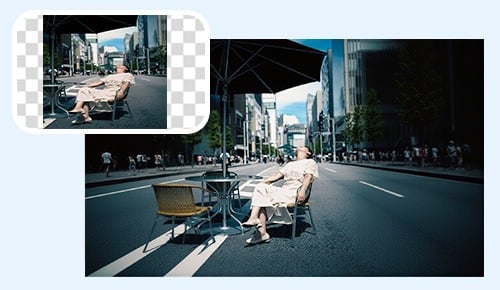
Expand the background of your photos to fix poorly framed or flawed photos, making them more visually appealing.
For Illustrators and Comic Artists
When someone needs to expand the scenes of individual works, AI matches the original artwork’s brushstrokes, color palette, and narrative logic to rapidly generate extended content.
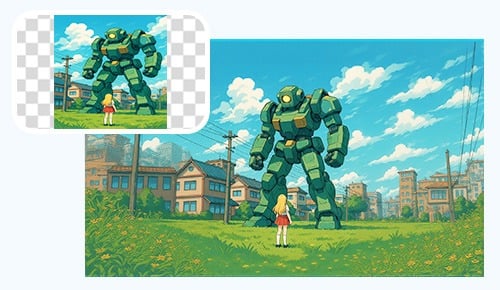
Try Picsman Image Extender today and see how easy it is to extend your image with AI!